Check out Apes Bartop pics. Awesome work based on our DIY Bartop Kit http://www.ArcadeForge.de
This Blog is about modding all kind of video game and arcade equipment
Showing posts with label MAME. Show all posts
Monday 25 August 2014
Thursday 21 August 2014
Apes Bartop revisited - Assembling PC MAME parts in ArcadeForge Bartop
Hey,
I`ve found again some nice pics assembling a high end pc for MAME in the ArcadeForge Bartop Kit.
He made a great pictorial on selecting parts and how made the components fit. Idea is to assemble harddisk and graphic card in the back mount panel of the bartop LCD.
I`ve found again some nice pics assembling a high end pc for MAME in the ArcadeForge Bartop Kit.
He made a great pictorial on selecting parts and how made the components fit. Idea is to assemble harddisk and graphic card in the back mount panel of the bartop LCD.
Wednesday 1 January 2014
Wallix Arcade Bubble Bobble Bartop - DIY Kit from www.ArcadeForge.de
Hey,
Wallix used our Arcade Forge Bartop DIY Kit for his awsome Bubble Bobble Bartop.
Happy new year to you all.
Wallix used our Arcade Forge Bartop DIY Kit for his awsome Bubble Bobble Bartop.
Happy new year to you all.
Saturday 21 December 2013
Arcadeforge Bartop with Bubble Bobble Theme by Wallix.
Wallix build a Bartop with the ArcadeForge Bartop DIY kit with following setup
Motherboard Asus P8 H61-I Mini ITX Formfaktor
Mini ITX Netzteil
3 TB Festplatte
4 GB Speicher
Keystrike
Sanwa Buttons und Stick
19 Zoll CTX Monitor 1280x1024
Betriebssystem Windows 7 Home Premium 64 Bit
Frontend Hyperspin
Motherboard Asus P8 H61-I Mini ITX Formfaktor
Mini ITX Netzteil
3 TB Festplatte
4 GB Speicher
Keystrike
Sanwa Buttons und Stick
19 Zoll CTX Monitor 1280x1024
Betriebssystem Windows 7 Home Premium 64 Bit
Frontend Hyperspin
Thursday 14 November 2013
Raspberry PI for Arcade Jamma Adapter with C64 / Atari / Negeo Joystick Port
Hey,
this is my new project for the Raspberry PI. I`m still searching for a good name :) Anyone?
EDIT : Name found :) The project is called PiJamma. It`s available in our online shop http://www.arcadeforge.de
It`s a kind of Arcade Jamma Adapter with controller game ports for C64 / Amiga / Atari and Neogeo style sticks. Additionally it has various connector break-outs like screw terminals to make your modding life more easy.
You see here the Raspberry PI with the Jamma Adapter.
Features :
- Raspberry pi GPIO Connector
- Jamma Interface
- Screw Terminals for all kind of signals
- Game controller Port DSUB 9 pin for Amiga, C64, Atari, etc
- Game controller Port for DSUB 16 pin for NeoGeo Controller sticks
- 3 buttons for controlling the emulators. Ie. take Start Player 1, Start Player 2 and Coin for Arcade emulator MAME
- Simple PSU Plug for 5V
- Extended PSU Molex connector for 12V and 5V
- 6 Pin Audio connector to connect a external amplifier. This way the Arduino Line Level sound can used in Arcade cabinets or bartops with speakers only.
- On and Off switch with LED
Ok, here some pics using the connectors.
Raspberry pi audio headphone connector to chinch. The Audio coming from Raspberry pi is line level. I`ve decided to go with extern amplifiers. So the user can decide to use high performance amplifier or home entertainment system or whatever. The design goal is to offer a wide range of use cases and not stick on one sound interface solution.
This board uses the GPIO interface for Arcade Controls. This way an additional Keyboard Encoder like Dual Strike or Key Strike is not needed. The pin count of the GPIO is limited. If someones wants six button 2 Player controls, so Keyboard Encoders can still be used via the USB Port of the Raspberry Pi. So again, no need to make the board expensive. The user decides what he wants.
But let`s face the Game controller Ports. In the picture one sees the famous competition Pro for the even more famous Commodore C64.
I`ve added here the audio breakout. Pinout is
- 12V
- GND
- Audio Line Level Left
- Speaker-
- Audio Line Level Right
- Speaker+
5V is available via Screw Terminal. Using 12V via this connector means that 12V must provided to the board via the Molex Connector. On the picture a sample Mono Amp is shown.
On the Picture a sample Stereo Amp is shown.
See here a simple 12V and 5V PSU. As said before a simple 5V PSU can be used via the basic PSU Plug. In this case the sound can grabbed from the HDMI or the headphone jacks to your own amplifier.
A short word about the video out. Raspberry offers HDMI and composite out. It would have been so nice to see VGA or something more sophisticated analogue signal.
The next post will shown some video adapter to get from HDMI a VGA signal with Scanlines or even RGBS for CRT or Arcade CRTs.
Thanks for your attention. Comments are welcome :)
Monday 30 September 2013
Key Strike Manager Software
Hey,
it`s time to make a short tutorial for programming the Key Strike.
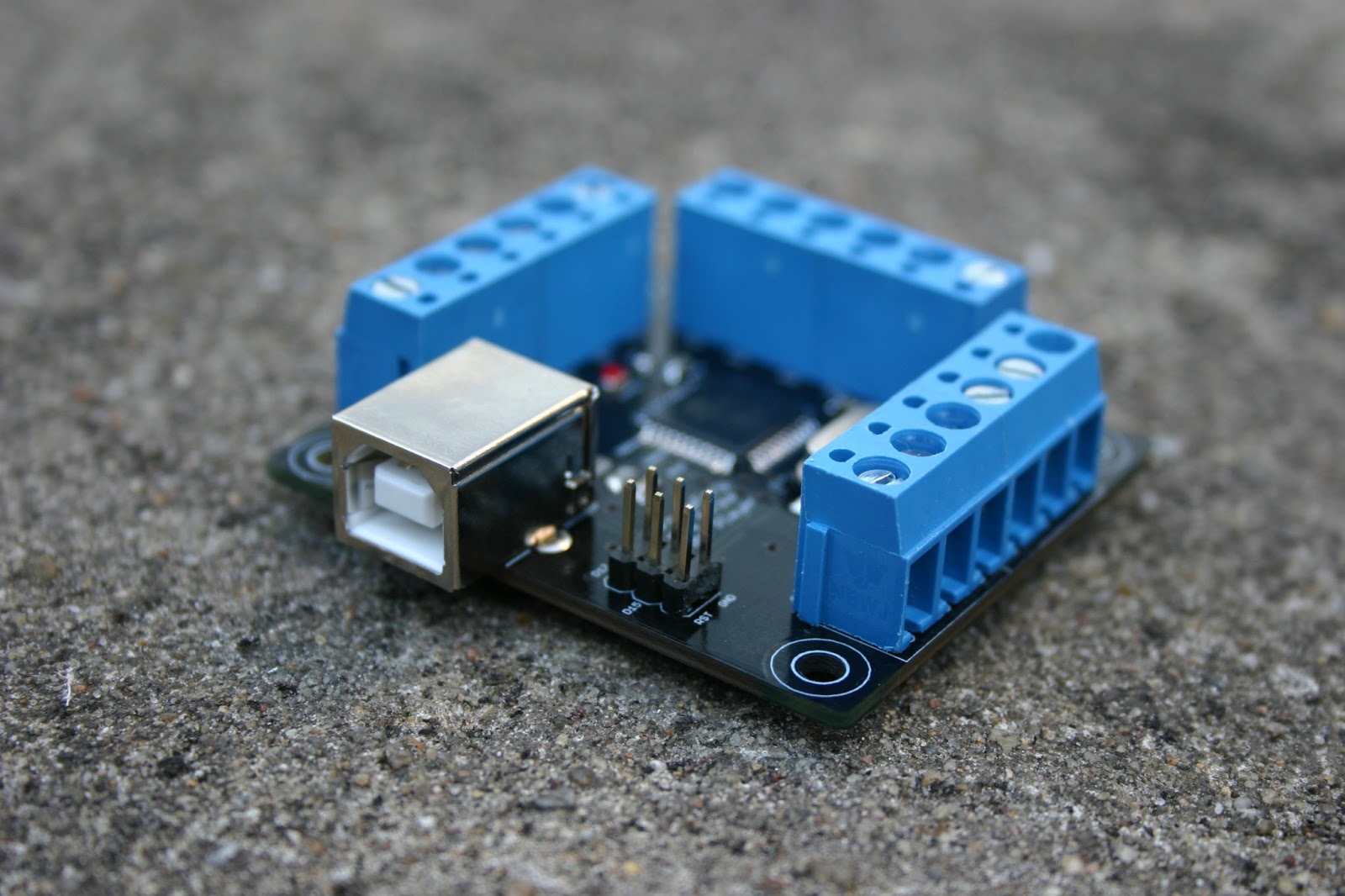
The Key Strike is a programmable keyboard and gamepad. It was developed as an input device for emulators (especially MAME) in bartop or dedicated arcade cabinet reproductions, but it is useful for all purposes, where keyboard or gamepad signals are needed.
It`s available at various resellers ( ie. www.arcadeshop.de) and our shop http://www.arcadeforge.de
The software Key Strike Manager can be downloaded at our project page http://strike-devices.net
Extract the package KeyStrike_Software.exe and follow the readme instructions.
Finally after short internet check of current version one sees this application.
File dialogue gives the normal operation like loading and saving setting files. A setting file contains the current keyboard mapping file for the key strike devices. They can be saved and loaded to be shared with other key strike devices.
Help Dialogue contains some help and language selection.
Key Strike Devices can be renamed. So your key strike can be be named in your device page.
The first checkbox enables or disables the alternative mapping. Imagine you want to go back in your MAME emulation game selection screen by pressing ESC or make something else useful. Press button SELECT plus the button for the desired alternative key. Example : Press button SELECT and button 2 will activate ESC key. The whole key mapping can be assigned just as you wish.
The TAB page shows 1 Player , 2 Player and Remove Player tab.
Key Strike 1 Player Version can be configured with the TAB Player 1. Key Strike 2 Player version with both tabs: Player 1 and Player 2.
The Key Strike can be used as gamepad as well. Just enable the check box for "use as gamepad".
The normal use for the Key Strike is as keyboard encoder. Each key can be configured. Ie:
Click "Button 1".
A virtual keyboard opens a your wanted key for button 1 can be selected with one mouse click. Of course the configuring can be done by simple key presses, too.
The default mapping is a standard MAME layout. Configure your needs for the primary and alternative mappings.
The mapping can be saved in Keystrike setting files and reused on other devices. Defaults can be enabled again with a simple click.
So, have fun with the key strike and this neat piece of software.
it`s time to make a short tutorial for programming the Key Strike.
The Key Strike is a programmable keyboard and gamepad. It was developed as an input device for emulators (especially MAME) in bartop or dedicated arcade cabinet reproductions, but it is useful for all purposes, where keyboard or gamepad signals are needed.
It`s available at various resellers ( ie. www.arcadeshop.de) and our shop http://www.arcadeforge.de
The software Key Strike Manager can be downloaded at our project page http://strike-devices.net
Extract the package KeyStrike_Software.exe and follow the readme instructions.
Finally after short internet check of current version one sees this application.
File dialogue gives the normal operation like loading and saving setting files. A setting file contains the current keyboard mapping file for the key strike devices. They can be saved and loaded to be shared with other key strike devices.
Help Dialogue contains some help and language selection.
Key Strike Devices can be renamed. So your key strike can be be named in your device page.
The first checkbox enables or disables the alternative mapping. Imagine you want to go back in your MAME emulation game selection screen by pressing ESC or make something else useful. Press button SELECT plus the button for the desired alternative key. Example : Press button SELECT and button 2 will activate ESC key. The whole key mapping can be assigned just as you wish.
The TAB page shows 1 Player , 2 Player and Remove Player tab.
Key Strike 1 Player Version can be configured with the TAB Player 1. Key Strike 2 Player version with both tabs: Player 1 and Player 2.
The Key Strike can be used as gamepad as well. Just enable the check box for "use as gamepad".
The normal use for the Key Strike is as keyboard encoder. Each key can be configured. Ie:
Click "Button 1".
A virtual keyboard opens a your wanted key for button 1 can be selected with one mouse click. Of course the configuring can be done by simple key presses, too.
The default mapping is a standard MAME layout. Configure your needs for the primary and alternative mappings.
The mapping can be saved in Keystrike setting files and reused on other devices. Defaults can be enabled again with a simple click.
So, have fun with the key strike and this neat piece of software.
Wednesday 17 April 2013
Subscribe to:
Posts (Atom)